Expert Mode
Expert Mode: Tracking Presets
We added this new feature called Expert mode, which allows you to edit Tracking Presets.
As a prerequisite, make sure that in the config file the key expertMode=true.
1. To do this, switch to the track panel and enable advanced settings.
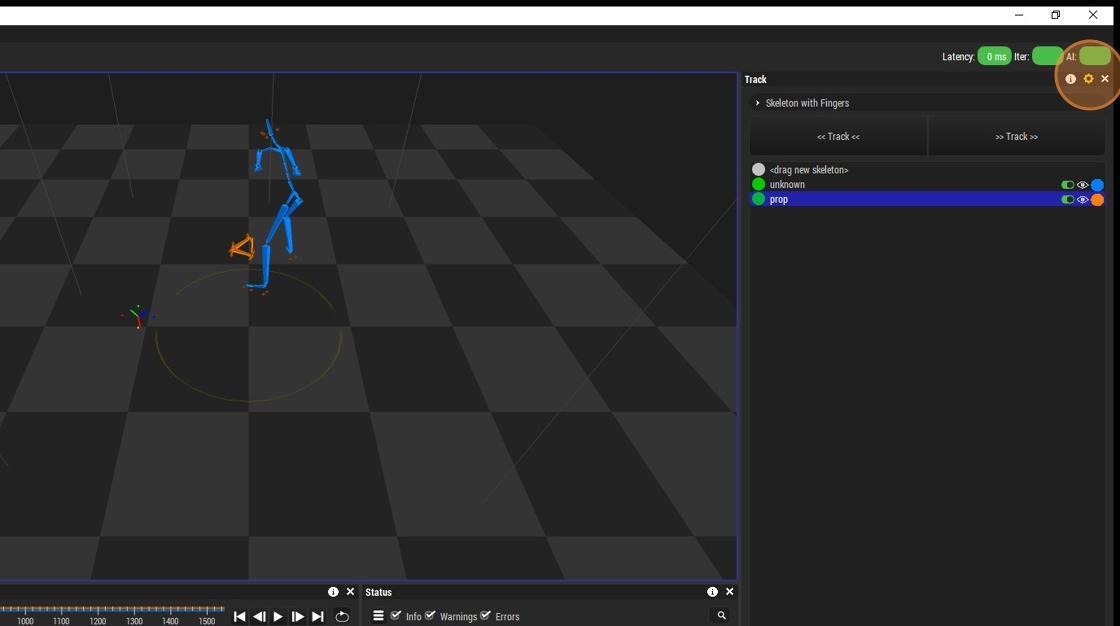
2. Open the "Expert Settings" in the "Tracking" group.

3. You'll find a bunch of parameters there. Most of these are probably not interesting to you. However, the body part marker weights may be interesting. They allow you to weight certain body parts higher during the solve, either generally or in particular situations. So how do we do this?

4. First select the Tracking Preset you want to use as a starting point.

5. So this one has a color relative weight.

6. And now we're going to add a new preset that uses this as a base by typing in the new name and hitting "Add Preset". And now you can see there are three presets.
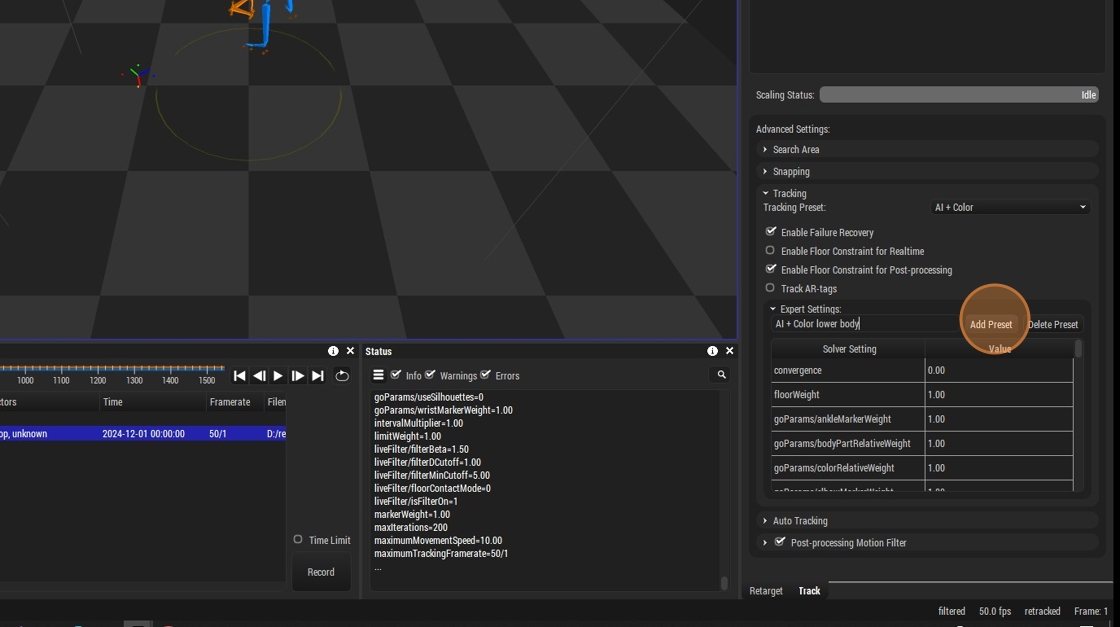
7. Now we're going to added the weights for the ankle and the knee markers. So let's just set these to three.
Double-click to edit.

8. And that's it. Now we have a new preset that uses higher weights on the knees and ankles.

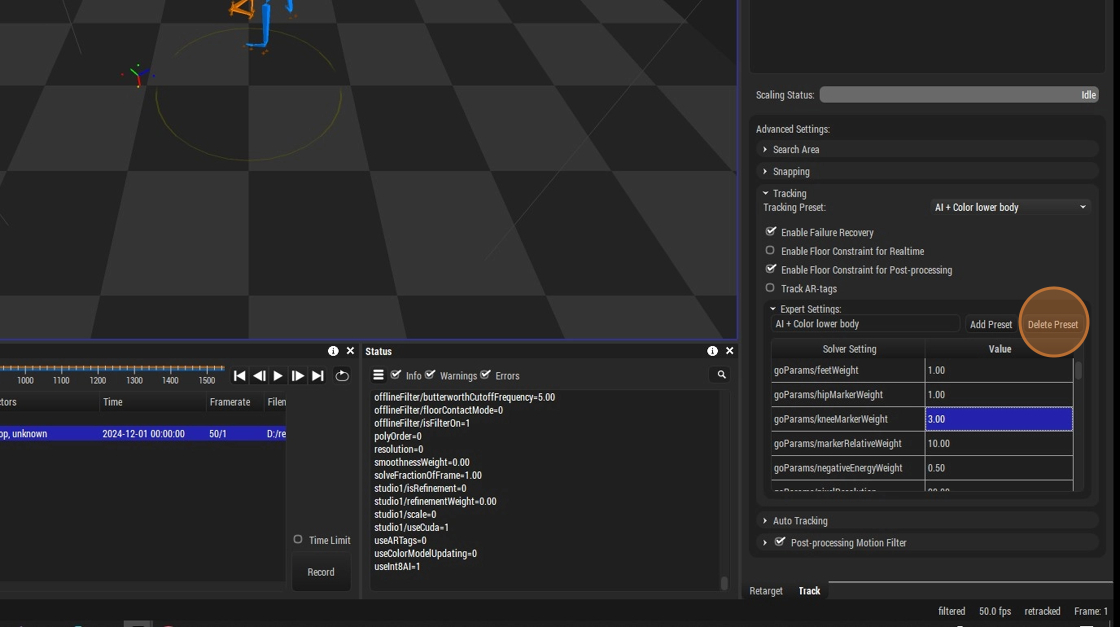
9. You can delete a preset by first selecting it in the dropdown and then clicking "Delete Preset"